How to make Custom Skin.
- Overview
- Please install Touch Contact v4.1.0 or later to your device. Lite edition is v1.0.0 or later.
- Sample Skin has made in same size as preset skins.
- Preset skin and Sample skin has made in VGA-based (480 pixel width), and it can support to all resolution devices. Because the custom skin automatically resize to the resolution of the device.
- If you want to make to another resolution, you must make a HEADER.png file to corresponding resolution. The HEADER.png file is a base on resolution of skins.
- Please contact us if you have some questions.
- In the case of making NoPhoto image.
- In the case of using preset skins for other images.
- Make your NoPhoto image to save as "DETAIL_NO_PHOTO.png".
- It is possible to any image size. Because it will resized.
- Create a folder on the device to save only two files.
- skins.txt
- DETAIL_NO_PHOTO.png
- Refer to Procedure of "How to change".
- In the case of making all images.
- Make your all images files.
- Edit skins.txt file to your design.
- Create a folder on the device to save all your designed files.
- Refer to Procedure of "How to change".
- In the case of making some image.
- In the case of using preset skins for other images.
- Make your image file with the same file name.
- Create a folder on the device to save files.
- skins.txt
- Your some files.
- Refer to Procedure of "How to change".
- In the case of making all images.
- This is similar to procedure of 2.b.
Sample Skins
| No. | ファイル | 説明 | ダウンロード |
|---|---|---|---|
| 1 | Custom Skin files set | This includes all skins and skins.txt. | |
| 2 | Photoshop file | PSD file for Photoshop. (It is set a slice) |
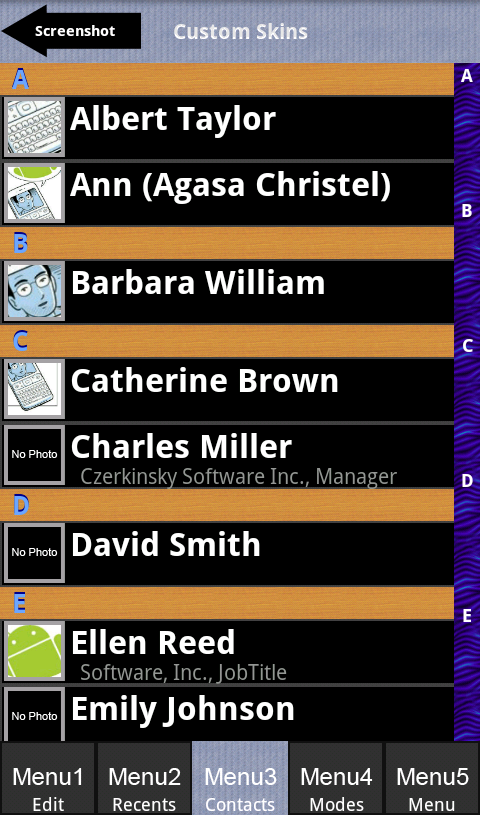
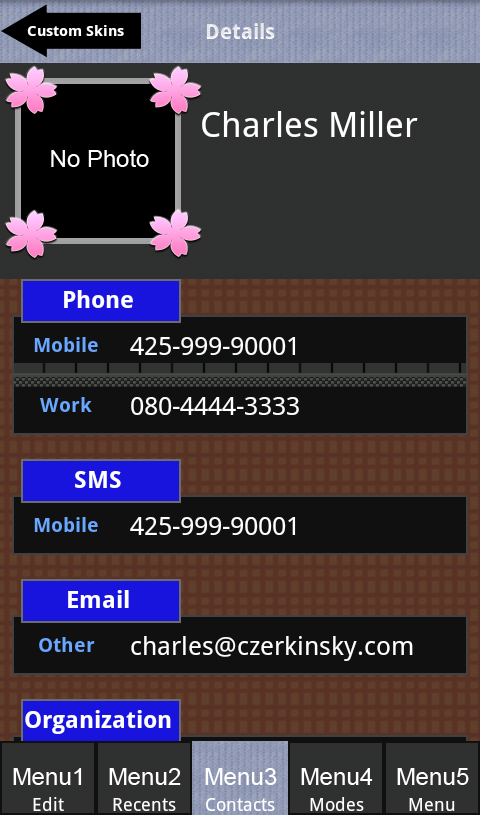
Description of the skin files
| No. | File name | Description | Image | Alpha (*1) |
|---|---|---|---|---|
| Skin Settings. | ||||
| 1 | skins.txt | Configuration of skins. |  |
|
| Header | ||||
| 1 | HEADER.png | Header. This is a base on resolution of skins. |
 |
|
| 2 | HEADER_ARROW.png | Button to go left. |  |
|
| 3 | HEADER_ARROW2.png | Button to go right. |  |
|
| Accounts, Groups, Lists | ||||
| 1 | LIST_ENTRY_00.png | List |  |
|
| 2 | LIST_ENTRY_01.png | Select List |  |
|
| 3 | LIST_ENTRY_03.png | Selected List |  |
|
| 4 | LIST_LABEL.png | Label |  |
|
| 5 | LIST_INDEX_00.png | Index |  |
|
| 6 | LIST_INDEX_01.png | Selected Index |  |
|
| 7 | LIST_PHOTO.png | Photo Frame |  |
 |
| 8 | LIST_NO_PHOTO.png | No Photo. size: 56x56 pixel |
 |
|
| Details | ||||
| 1 | DETAIL_BACK1.png | Background (Picture, Names) | 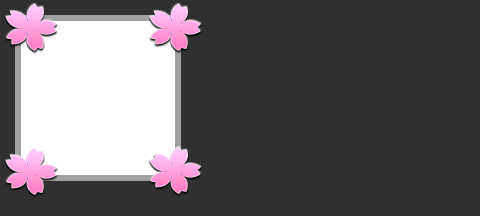 |
|
| 2 | DETAIL_BACK2.png | Background |  |
|
| 3 | DETAIL_NO_PHOTO.png | No Photo. size: 160x160 pixel |
 |
|
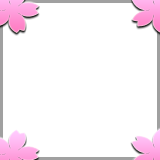
| 4 | DETAIL_NO_PHOTO2.png | Overdraw to No Photo. size: 160x160 pixel |
 |
|
| 5 | DETAIL_TOP_00.png | Rectangle Top. |  |
|
| 6 | DETAIL_MID_00.png | Rectangle Middle. |  |
|
| 7 | DETAIL_BOTTOM_00.png | Rectangle Bottom. |  |
|
| 8 | DETAIL_TOP_01.png | Select Rectangle Top. |  |
|
| 9 | DETAIL_MID_01.png | Select Rectangle Middle. |  |
|
| 10 | DETAIL_BOTTOM_01.png | Select Rectangle Bottom. |  |
|
| 11 | DETAIL_TOP_03.png | Selected Rectangle Top. |  |
|
| 12 | DETAIL_MID_03.png | Selected Rectangle Middle. |  |
|
| 13 | DETAIL_BOTTOM_03.png | Selected Rectangle Bottom. |  |
|
| 14 | DETAIL_TOP2_00.png | Rectangle Top (Continuation of the same label) |
 |
|
| 15 | DETAIL_BOTTOM2_00.png | Rectangle Bottom (Continuation of the same label) |
 |
|
| 16 | DETAIL_TOP2_01.png | Select Rectangle Top (Continuation of the same label) |
 |
|
| 17 | DETAIL_BOTTOM2_01.png | Select Rectangle Bottom (Continuation of the same label) |
 |
|
| 18 | DETAIL_TOP2_03.png | Selected Rectangle Top (Continuation of the same label) |
 |
|
| 19 | DETAIL_BOTTOM2_03.png | Selected Rectangle Bottom (Continuation of the same label) |
 |
|
| 20 | DETAIL_TOP3_00.png | Rectangle Top (Continuation of the different label) |
 |
|
| 21 | DETAIL_TOP3_01.png | Select Rectangle Top (Continuation of the different label) |
 |
|
| 22 | DETAIL_TOP3_03.png | Selected Rectangle Top (Continuation of the different label) |
 |
|
| Menu | ||||
| 1 | FOOTER_MENU1_00.png | Edit |  |
|
| 2 | FOOTER_MENU1_01.png | Selected Edit |  |
|
| 3 | FOOTER_MENU2_00.png | Recent |  |
|
| 4 | FOOTER_MENU2_01.png | Selected Recent |  |
|
| 5 | FOOTER_MENU3_00.png | Contacts |  |
|
| 6 | FOOTER_MENU3_01.png | Selected Contacts |  |
|
| 7 | FOOTER_MENU4_00.png | Modes |  |
|
| 8 | FOOTER_MENU4_01.png | Selected Modes |  |
|
| 9 | FOOTER_MENU4_02.png | Modes (Working) |  |
|
| 10 | FOOTER_MENU5_00.png | Menu |  |
|
| 11 | FOOTER_MENU5_01.png | Selected Menu |  |
|
| 12 | FOOTER_MENU_CNT.png | Counter |  |
|
| 13 | FOOTER_MENU_LIST_00.png | List |  |
|
| 14 | FOOTER_MENU_LIST_01.png | Select List |  |
|
| Dialog | ||||
| 1 | DIALOG_TOP.png | Rectangle Top |  |
|
| 2 | DIALOG_MID.png | Rectangle Middle |  |
|
| 3 | DIALOG_BOTTOM.png | Rectangle Bottom |  |
|
| 4 | DIALOG_BUTTON_OK.png | OK Button |  |
|
| 5 | DIALOG_BUTTON_CANCEL.png | Cancel Button |  |
|
| 6 | DIALOG_BUTTON_DOWN.png | Selected Button |  |
|
| 7 | DIALOG_MULTI_BUTTON_OK.png | Multi-selection Button |  |
|
| 8 | DIALOG_MULTI_BUTTON_CANCEL.png | Cancel Multi-selection Button |  |
|
| 9 | DIALOG_MULTI_BUTTON_DOWN.png | Selected Multi-selection Button |  |
|
| Icon | ||||
| 1 | RECENT_TEL.png | Recently Outgoing Call |  |
|
| 2 | RECENT_TEL2.png | Recently Incoming Call |  |
|
| 3 | RECENT_TEL3.png | Recently Missed Call |  |
|
| 4 | RECENT_FAX.png | Recently FAX |  |
|
| 5 | RECENT_SMS.png | Recently SMS |  |
|
| 6 | RECENT_MAIL.png | Recently Mail |  |
|
| 7 | RECENT_MMS.png | Recently MMS |  |
|
| 8 | RECENT_WEB.png | Recently Web |  |
|
| 9 | RECENT_IM.png | Recently IM |  |
|
| 10 | RECENT_DATE.png | Recently Event (Birthday, etc) |  |
|
| 11 | RECENT_MAP.png | Recently Map |  |
|
| 12 | CALL_RECORD.png | Recently Recorded Call |  |
|
| 13 | DEVICE_ACCOUNT.png | Device Account |  |
|
| Presence | ||||
| 1 | PRESENCE_ONLINE.png | Online |  |
|
| 2 | PRESENCE_AWAY.png | Away |  |
|
| 3 | PRESENCE_IDLE.png | Idle |  |
|
| 4 | PRESENCE_OFFLINE.png | Offline |  |
|
- *1) [Alpha] is whether can use a alpha-channel.